Showing posts with label SMS. Show all posts

Thursday, April 25, 2013

Utilizing Fall back for Software Updates in 2012 Sp1

"Starting in Configuration Manager SP1, you can configure a client on the intranet to download software updates from Microsoft Update if a distribution point is not available. " http://technet.microsoft.com/en-us/library/gg712304.aspx
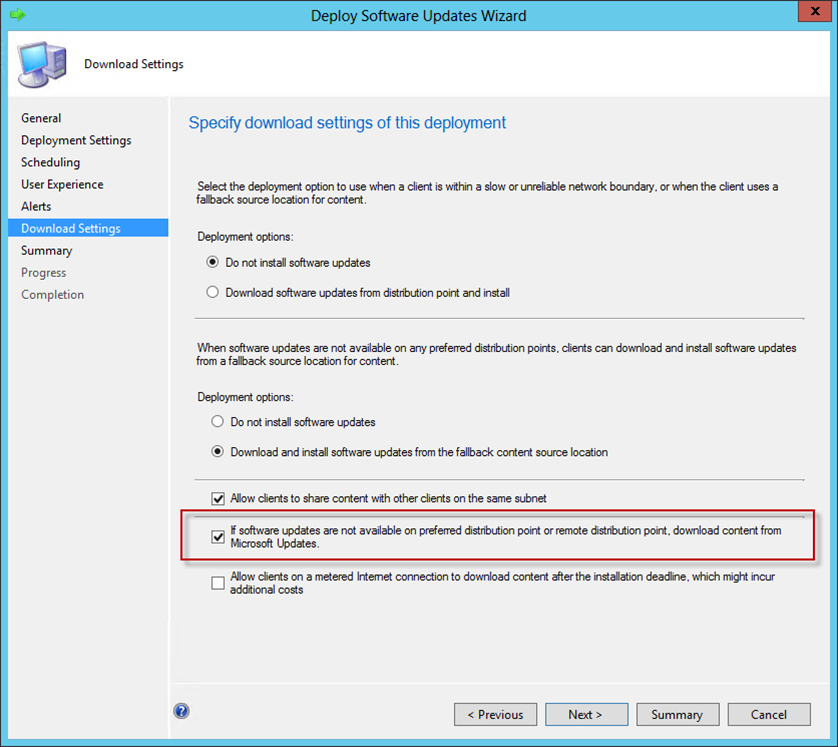
Now that we have a way to make clients download updates from the Internet when an update is not found on a distribution point.   This is a unique feature but it does require updates be download and on at least 1 DP.

Now how can we utilize this new feature to cheat the clients.  This is how:

Scenario: Company of 15,000 machines has 300 machines left on Vista and 400 on Windows XP.  Network bandwith to the DP is limited and there are no more than 10 machines at each site.  This company is special because they have a proxy link to the Internet so all non-business traffic is sent directly to the internet.  But they must still patch all these computers.

Solution: Pick a single DP to hold the Vista and XP patches.  Create your Software Update Groups as usual but only deploy them to a single DP.  Why?  The XP/Vista clients will look at the local and remote DPs for software updates.  You must check both Boxes to "Download and install".  They will not find the updates so it will fail over to the Internet. Because the number of machines is small the company will not feel the internet traffic download and the admins don't need to distribute Vista or XP patches all over the world. 

This was not meant for the way I am pushing it but it does work. 

What it solves:
1. No network traffic to random DPS for Vista and XP patches
2. DP queue is open for other distributions.
3. Clients patch and compliance number will continue to rise
4. OS patches only need to be on 1 DP


Note: CU1 is required is you are running over alternate ports.  This corrects and issue of the client trying to use the alternate ports to contact Microsoft Updates

Tuesday, May 11, 2010

Technet Forum Changes

You might have noticed some changes occuring on the Technet forums. If you are still using SMS 2003 you will now see this forum

Systems Management Server 2003
http://social.technet.microsoft.com/Forums/en-US/sms/threads

Under the Configuration Manager forum.

Tuesday, August 25, 2009

SMS Newsgroups

I hear every so often that "There are no SMS forums or newgroups anymore." Well this is not the case. The SMS newsgroups are alive and still kicking.
If you go here http://technet.microsoft.com/en-us/sms/bb839598.aspx
and click on any of the SMS newsgroups links you are passed to a page that says "Welcome to Microsoft Discussion Groups " but no data is listed. This is partly due to a bad link which hopefully will be corrected soon. In the mean time here is a corrected link to get you o the Admin newsgroup, from there you can move to any of the other newsgroups.

http://www.microsoft.com/communities/newsgroups/en-us/default.aspx?dg=microsoft.public.sms.admin

Saturday, March 17, 2007

Shutdown Logged Out computer

This is a simple procedure that can be done via WMI or the application. Say you want to shutdown computers in SMS that are logged out. Maybe to save money on long breaks for for whatever reason. Simply send the command:

shutdown.exe -s -t 30 -c "SMS Shutting system down"

If you wish you can run it from the computer or place it in a package and send it down to the computer. This will shutdown in 30 seconds with a warning. If you what you can add the -f to force any applications that might be running to close

Friday, March 16, 2007

Recover Deleted Items in Outlook 2003

When most people delete items in Outlook they really mean to do it. What if someone clears their Deleted Items folder but needs something back. Then the admin must pull backups or try other tricks. If you send down this Reg entry to the machines it will Give you a Recover Deleted items option in Outlook.

--------------------------------------
Windows Registry Editor Version 5.00
[HKEY_LOCAL_MACHINE\SOFTWARE\Microsoft\Exchange\Client\Options]"DumpsterAlwaysOn"=dword:00000001
-------------------------------------

Thursday, March 15, 2007

Logged out Background and Screen saver

Here is a simple script that will allow you to have a background when someone is logged out, say company logo or something. It will also set a special screen saver when no one is logged.

Because you are working in the .Default regfile I recommend running this adv when no one is logged on. Changes will not be see until you do a reboot.

Reg file
----------------
Windows Registry Editor Version 5.00
[HKEY_USERS\.DEFAULT\Control Panel\Desktop]
"ScreenSaverIsSecure"="1"
"ScreenSaveTimeOut"="60"
"ScreenSaveActive"="1"
"SCRNSAVE.EXE"="Custom.scr"
"Wallpaper"="CompanyLogo.bmp"

[HKEY_USERS\.DEFAULT\Control Panel\Screen Saver.Slideshow]
"PaintInterval"=dword:00000000
"ChangeInterval"=dword:00001770
"DisplayFilename"=dword:00000000
"MaxScreenPercent"=dword:0000005a
"DisableTransitions"=dword:00000000
"AllowStretching"=dword:00000000
"AllowKeyboardControl"=dword:00000000
"MaxFailedFiles"=dword:000003e8
"MaxSuccessfulFiles"=dword:00010000
"MaxDirectories"=dword:000000c8
"ImageDirectory"="c:\\windows\\screensaver\\"
-------------------------
User.reg
Windows Registry Editor Version 5.00

[HKEY_CURRENT_USER\Control Panel\Desktop]
"SCRNSAVE.EXE"="Custom.scr"
"Tilewallpaper"=0"
"ScreenSaveTimeOut"="600"
"ScreenSaverIsSecure"="1"
"ScreenSaveActive"="1"
------------

user screensaver.reg

[HKEY_CURRENT_USER\Control Panel\Screen Saver.Slideshow]
"PaintInterval"=dword:00000000
"ChangeInterval"=dword:00001770
"DisplayFilename"=dword:00000000
"MaxScreenPercent"=dword:0000005a
"DisableTransitions"=dword:00000000
"AllowStretching"=dword:00000000
"AllowKeyboardControl"=dword:00000000
"MaxFailedFiles"=dword:000003e8
"MaxSuccessfulFiles"=dword:00010000
"MaxDirectories"=dword:000000c8


Install.bat
------------
rem This file must be run as admin since it sets the main default setting for the computer
rem Use company logo for screen saver.
regedit.exe /s no-one.reg
md "%windir%\screensaver\"
copy /y CompanyLogo.jpg"%windir%\screensaver\"
-------------------------

Wednesday, March 14, 2007

Disk Cleanup

Ever wanted to do a disk clean up on your own schedule? Here is some code that will allow you to just that.

Install:
regedit.exe /s disk-cleanup.reg
------------------
Windows Registry Editor Version 5.00
[HKEY_LOCAL_MACHINE\SOFTWARE\Microsoft\Windows\CurrentVersion\Explorer\VolumeCaches\Compress old files]"StateFlags0200"=dword:00000000
[HKEY_LOCAL_MACHINE\SOFTWARE\Microsoft\Windows\CurrentVersion\Explorer\VolumeCaches\Content Indexer Cleaner]"StateFlags0200"=dword:00000000
[HKEY_LOCAL_MACHINE\SOFTWARE\Microsoft\Windows\CurrentVersion\Explorer\VolumeCaches\Downloaded Program Files]"StateFlags0200"=dword:00000002
[HKEY_LOCAL_MACHINE\SOFTWARE\Microsoft\Windows\CurrentVersion\Explorer\VolumeCaches\Internet Cache Files]"StateFlags0200"=dword:00000002
[HKEY_LOCAL_MACHINE\SOFTWARE\Microsoft\Windows\CurrentVersion\Explorer\VolumeCaches\Memory Dump Files]"StateFlags0200"=dword:00000000
[HKEY_LOCAL_MACHINE\SOFTWARE\Microsoft\Windows\CurrentVersion\Explorer\VolumeCaches\Microsoft_Event_Reporting_2.0_Temp_Files]"StateFlags0200"=dword:00000002
[HKEY_LOCAL_MACHINE\SOFTWARE\Microsoft\Windows\CurrentVersion\Explorer\VolumeCaches\Office Setup Files]"StateFlags0200"=dword:00000000
[HKEY_LOCAL_MACHINE\SOFTWARE\Microsoft\Windows\CurrentVersion\Explorer\VolumeCaches\Offline Files]"StateFlags0200"=dword:00000002
[HKEY_LOCAL_MACHINE\SOFTWARE\Microsoft\Windows\CurrentVersion\Explorer\VolumeCaches\Old ChkDsk Files]"StateFlags0200"=dword:00000000
[HKEY_LOCAL_MACHINE\SOFTWARE\Microsoft\Windows\CurrentVersion\Explorer\VolumeCaches\Recycle Bin]"StateFlags0200"=dword:00000000
[HKEY_LOCAL_MACHINE\SOFTWARE\Microsoft\Windows\CurrentVersion\Explorer\VolumeCaches\Remote Desktop Cache Files]"StateFlags0200"=dword:00000002
[HKEY_LOCAL_MACHINE\SOFTWARE\Microsoft\Windows\CurrentVersion\Explorer\VolumeCaches\Setup Log Files]"StateFlags0200"=dword:00000000
[HKEY_LOCAL_MACHINE\SOFTWARE\Microsoft\Windows\CurrentVersion\Explorer\VolumeCaches\Temporary Files]"StateFlags0200"=dword:00000002
[HKEY_LOCAL_MACHINE\SOFTWARE\Microsoft\Windows\CurrentVersion\Explorer\VolumeCaches\Temporary Offline Files]"StateFlags0200"=dword:00000002
[HKEY_LOCAL_MACHINE\SOFTWARE\Microsoft\Windows\CurrentVersion\Explorer\VolumeCaches\WebClient and WebPublisher Cache]"StateFlags0200"=dword:00000002
------------------------------
Execute:
cleanmgr.exe /sagerun:200


*****************************
Now what does all this mean...
StateFlags0200 is the level or setting I have created. You can have 0001 to 9999 different ways of doing diskclean up.
dword:00000002 Sets this setting to active.

So now you can control what type of file will be cleaned, including the recycle bin if you wanted.
There are more registry keys that you can control than the ones listed above. Now you can force a disk clean up several times a month with different version.

http://support.microsoft.com/kb/315246